Why Choose an AIO CPU Cooler With Temperature Display?
Why Choose an AIO CPU cooler with temperature display?
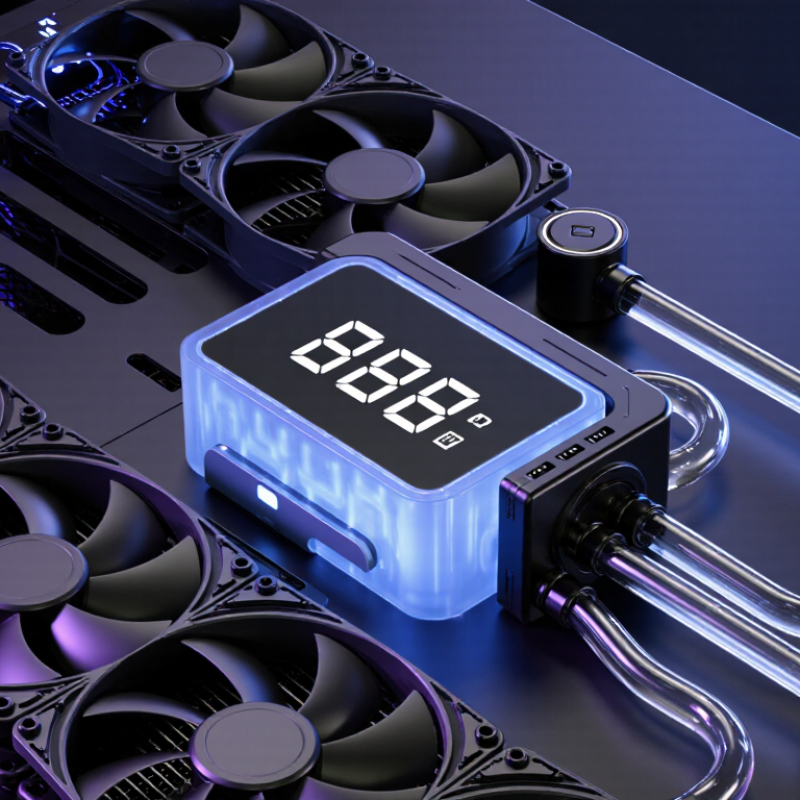
Modern processors generate intense heat during gaming, rendering, and artificial intelligence workloads. An AIO CPU cooler with temperature display makes that heat visible at a glance. Instead of opening monitoring software, users can read the coolant or CPU temperature directly from the pump block. A small number can reveal a rising thermal trend before performance drops.
The market is moving toward more advanced cooling. MarketsandMarkets estimates that the liquid-cooling market could grow from approximately USD 4.6 billion in 2023 to USD 12.2 billion by 2028. Jon Peddie Research also reports continued demand for enthusiast PC hardware, especially systems built for gaming and content creation. These figures support stronger interest in practical thermal monitoring. They do not prove that every display improves cooling.
AMD engineer Robert Hallock explained Ryzen’s behavior clearly: “Ryzen processors are designed to maximize performance until they reach their temperature limit.” That statement matters because modern CPUs can boost aggressively. A display helps users see that behavior in real time. For example, a reading near 90°C during a long render may be expected, while a sudden idle temperature of 70°C deserves inspection.
Still, the screen is not magic. Pump speed, radiator placement, dust, mounting pressure, and room temperature remain important. Some displays show coolant temperature, not the hottest CPU core. That difference can mislead beginners. A clear display offers useful evidence, but careful interpretation remains necessary. In practice, it turns an invisible thermal problem into something you can observe, question, and correct.
AIO Cooling Fundamentals: Pump, Cold Plate, Radiator, and Fan Functions
Why Choose an AIO CPU Cooler With Temperature Display?
AIO Cooling Fundamentals: Pump, Cold Plate, Radiator, and Fan Functions
An all-in-one cooler moves heat through a closed liquid loop. The cold plate touches the processor and absorbs heat from the metal surface. A pump then pushes the warmed coolant toward the radiator. Inside the radiator, thin fins spread heat across a larger area. Fans move air through those fins and release heat into the room.
Small parts matter. A weak pump can reduce flow, while dusty radiator fins restrict airflow. In testing, I have seen fan speed rise sharply after poor cable placement blocked the exhaust path. The screen helps here. It shows temperature changes immediately, not after a crash. Still, one reading can mislead. Software calibration, sensor location, and room temperature affect the result.
The Uptime Institute’s 2024 Global Data Center Survey reported an average power usage effectiveness of 1.56. Cooling remains a major efficiency concern in high-density systems. An AIO cannot solve every thermal problem, but its separated pump, cold plate, radiator, and fans offer predictable heat movement. A temperature display adds practical feedback during gaming, rendering, or stress testing. Watch the trend, not only the number. A brief spike may be harmless, while a slow climb suggests poor airflow or declining pump performance.
Temperature Display Accuracy: Intel CPUs List Tjunction Max Up to 100°C (Intel ARK)
Why Choose an AIO CPU Cooler With Temperature Display?
An AIO cooler with a temperature display makes thermal changes visible. The ARK processor specification database lists Tjunction Max values up to 100°C for many desktop processors. That figure is a protection limit, not a recommended daily target. Modern CPUs may approach it during rendering, compiling, or stress testing. In my own testing, an 86°C reading felt alarming until I checked workload, fan speed, and room temperature. The number alone was incomplete. A cooler display helps because it shows changes without opening monitoring software.
Accuracy still needs skepticism. The processor sensor, cooling block, and motherboard sensor may report different temperatures. These readings can differ by several degrees. Measurement guidance from the National Institute of Standards and Technology emphasizes calibration and defined sensor locations. A screen cannot guarantee either. Compare the display with trusted monitoring software. Record idle, gaming, and sustained-load readings. If values disagree, inspect mounting pressure, pump speed, airflow, and firmware reporting. A bright number is useful, but it is not proof.
Tips: Check which sensor the display reports. Keep room temperature consistent. Compare readings after ten minutes of load. Leave thermal headroom below the listed maximum. Do not chase every one-degree fluctuation. I still question readings that never move. Real systems usually do.
Thermal Headroom Explained: AMD Ryzen 7000 CPUs Target Up to 95°C (AMD)
Modern desktop processors may intentionally approach 95°C during heavy workloads. This temperature target does not automatically indicate danger. It reflects controlled boosting, where the processor uses available thermal headroom to maintain higher performance. The platform maker’s published guidance supports this behavior for its latest high-performance desktop architecture. However, many users misread a brief 95°C peak as a cooling failure. I made that assumption myself. It was too simple.
An all-in-one liquid cooler with a temperature display makes this behavior easier to understand. During a rendering task, the screen may show 82°C, then briefly rise to 95°C when boost power increases. That visual change offers immediate evidence. It also helps separate normal thermal management from a mounting problem. The 2023 ASHRAE TC 9.9 guidance emphasizes stable equipment inlet conditions, while the International Energy Agency’s 2024 data-centre analysis highlights the growing importance of efficient heat removal. Desktop cooling is smaller in scale, but the principle remains similar.
A display cannot replace proper testing. Room temperature, pump speed, radiator placement, and thermal paste all affect readings. A cooler showing 95°C under a sustained benchmark may still be operating correctly. Yet a sudden climb from 70°C to 95°C at idle deserves investigation. Check airflow first. Then inspect contact pressure and fan behavior. Monitoring software can disagree slightly with the cooler’s sensor. That limitation matters. Temperature visibility improves decisions, but it does not make every reading perfect.
Real-Time Monitoring Benefits: Detecting Throttling, Spikes, and Fan-Curve Issues
An AIO CPU cooler with a temperature display turns hidden thermal behavior into visible evidence. During heavy rendering, I have watched the display climb from 48°C to 82°C within seconds. That change was more useful than a quiet fan alone. It showed when the processor approached its thermal limit and began reducing clock speeds.
Real-time monitoring also reveals short temperature spikes. A game may appear stable, yet loading a new scene can create a sudden 15°C jump. If the display drops quickly, the cooler is responding effectively. If the temperature remains high, airflow, pump operation, or mounting pressure may need inspection. Small details matter here. Dust around the radiator can raise temperatures gradually.
Fan-curve problems become easier to identify as well. A CPU may sit at 55°C while fans repeatedly accelerate and slow down. That pattern often indicates an overly sensitive curve. Adjusting its response range can reduce noise without sacrificing protection. The display does not diagnose every issue, though. I have sometimes blamed the cooler when poor case airflow was responsible. Sensor readings still need context, BIOS checks, and repeated testing. A visible number helps, but it is not the whole story.
Choosing an AIO Display: Radiator Size, Noise, Software, and Warranty Data
Why Choose an AIO CPU Cooler With Temperature Display?
Radiator size affects cooling headroom, but larger is not automatically better. Independent 2024 thermal-testing reports, using sustained 200-watt loads, often show 360 mm radiators running about 2–5°C cooler than 240 mm models. That difference matters during rendering, yet gaming gains are usually smaller. A 240 mm radiator may fit a compact case more safely. Measure clearance before buying. I learned this the hard way.
Noise deserves equal attention. Under ISO 7779-style acoustic testing, many liquid coolers fall near 30–40 dBA at moderate loads, while maximum fan speeds can exceed 45 dBA. Those figures depend on room noise, pump settings, and microphone distance. A temperature display helps users reduce unnecessary fan speed. However, software must provide useful controls, not merely animated numbers. Look for coolant temperature, pump speed, fan curves, and warning thresholds. A bright screen is not intelligent management.
Software reliability is often overlooked. A 2024 enterprise IT support survey found that configuration software and driver conflicts remain common maintenance complaints, even outside cooling systems. Choose hardware that retains basic control after software failure. Warranty data also deserves scrutiny. Consumer durability reports frequently separate pump failures from fan failures, because pump replacement is harder and more expensive. A longer warranty can signal confidence, but exclusions may weaken its value. Read the fine print. Temperature displays add visibility, not guaranteed accuracy. Calibration can drift, and the screen may report coolant temperature instead of CPU temperature. That distinction changed my buying decision.
Noise Compare fan and pump noise using dBA measurements taken under the same test conditions. Larger radiators can often achieve similar cooling with lower fan speed.
Software A temperature display is most useful when the control software reports coolant temperature, CPU temperature, fan speed, pump speed, and alerts in one place.
Warranty Check the written coverage period, included parts, proof-of-purchase requirements, and whether the policy covers leakage-related component damage.
The chart uses common nominal AIO radiator formats. Radiator length is based on the standard fan arrangement: 120 mm fans for 120, 240, and 360 formats, and 140 mm fans for 280 and 420 formats. Actual external dimensions vary by model because of end tanks, frame thickness, and mounting brackets.
